XDA

PSA: Enable Scroll Anchoring in Google Chrome to Prevent Annoying Page Jumps

Enable scroll anchoring to prevent annoying page jumps whenever you load a new page with lots of offscreen content. Go to chrome://flags to enable it.

Readers like you help support XDA Developers. When you make a purchase using links on our site, we may earn an affiliate commission. Read More.

There are a ton of awesome features hidden away in many Google apps that are rarely hyped up namely due to a lack of advertisement by Google. One such feature hidden away in Google Chrome's chrome://flags page is the Scroll Anchoring feature.

Introduced back in April initially only in Google Chrome Dev v51 builds, the feature prevents your webpage from "jumping" whenever offscreen content such as ads or images are loading. I'm sure you've run into this issue before, it happens fairly frequently for any user who quickly jumps from one webpage to another, perhaps when reading articles with tons of images. Your only real solution to this is to patiently wait for the entire webpage to fully load before clicking on any link, but who has time for that?

Sufficiently bothered by this issue yet? If so, then head on over to chrome://flags/#enable-scroll-anchoring (paste this into your URL address bar), enable the flag, then relaunch the browser. After you've enabled this feature, you should no longer suffer from text reflows due to the loading of offscreen content, but as Google Chrome's developers note your mileage may vary. If you do notice a webpage incorrectly reflow even after enabling this feature, you can report it straight to the developers by following this link.

It's worth noting that Google may choose to can this feature whenever they want, as any feature that lives in the chrome://flags page is technically only for beta testing purposes. However, since this feature has already survived two version changes in Google Chrome Dev, we don't expect it to suddenly disappear in the next week or so. As the stable build of Google Chrome is now on v51, all users of Chrome browser on Android can take advantage of this feature. We're not exactly sure why this feature hasn't been enabled by default in any build of Chrome, but my tinfoil hat tells me it's so that you will accidentally click on advertisements.


Thanks to DaShata over on /r/Nexus6P for pointing this out!
How to disable fast startup in Windows 11

Fast Startup combines hibernation with shutdown and is designed to allow your computer to boost faster, but if you don't like it, you can disable it.

Readers like you help support XDA Developers. When you make a purchase using links on our site, we may earn an affiliate commission. Read More.

Windows 11 has many new features, but one that keeps returning is Fast Startup. This does what the name suggests, allowing your PC to boot faster once you shut it down completely and restart it again with the power button. It's like a hybrid between hibernation and shutdown that helps your PC start up as soon as you push that power button because it won't shut it down fully. Yes, the computer will physically be off, but Fast Sartup saves the state of your hard drive at the moment of shutdown and brings it back where you left it the next time you log in. That way, it doesn't have to restart the services it needs for File Explorer, Taskbar, and other system areas.

While this can save you a lot of time, it can sometimes result in issues with dual-booting operating systems or booting from ISO drives. So, if you want to disable it, you can visit the settings in Control Panel.

How to disable fast startup in Windows 11

To disable fast startup in Windows 11, you need to visit the classic Control Panel. This setting isn't available in the modern Windows 11 settings app. You should see it in Control Panel on all versions of Windows 11, including the new Moment 3 update.

  1. Open the Start Menu and search for Control Panel.
  2. Click the top result.
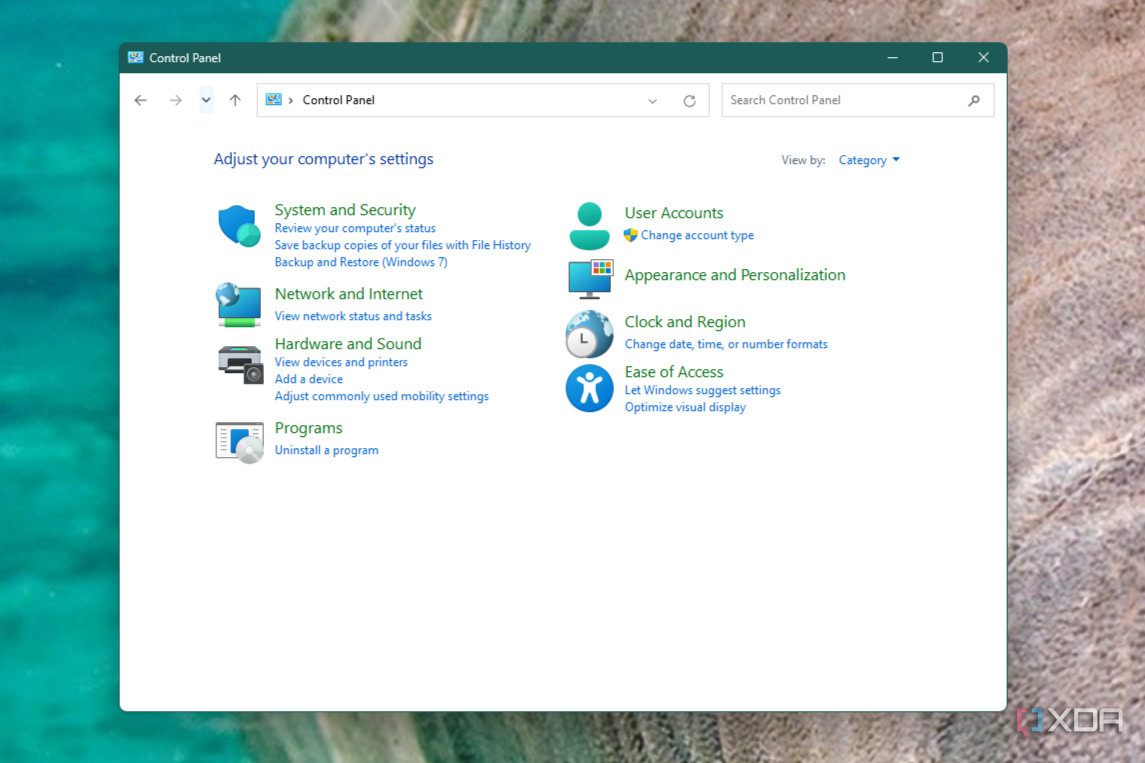
  3. Switch the Control Panel to the Category view from the top under View by.
    Windows 11 control panel in category view
  4. Choose Hardware and Sound.
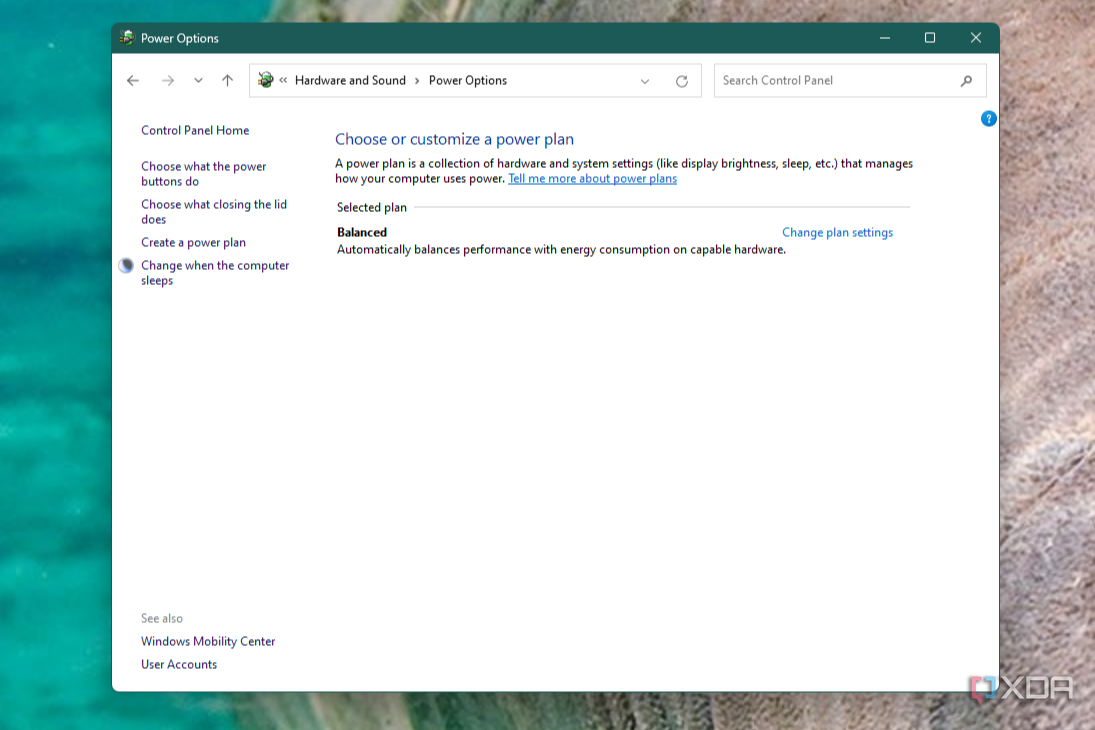
  5. Select Power Options.
    Windows 11 power options
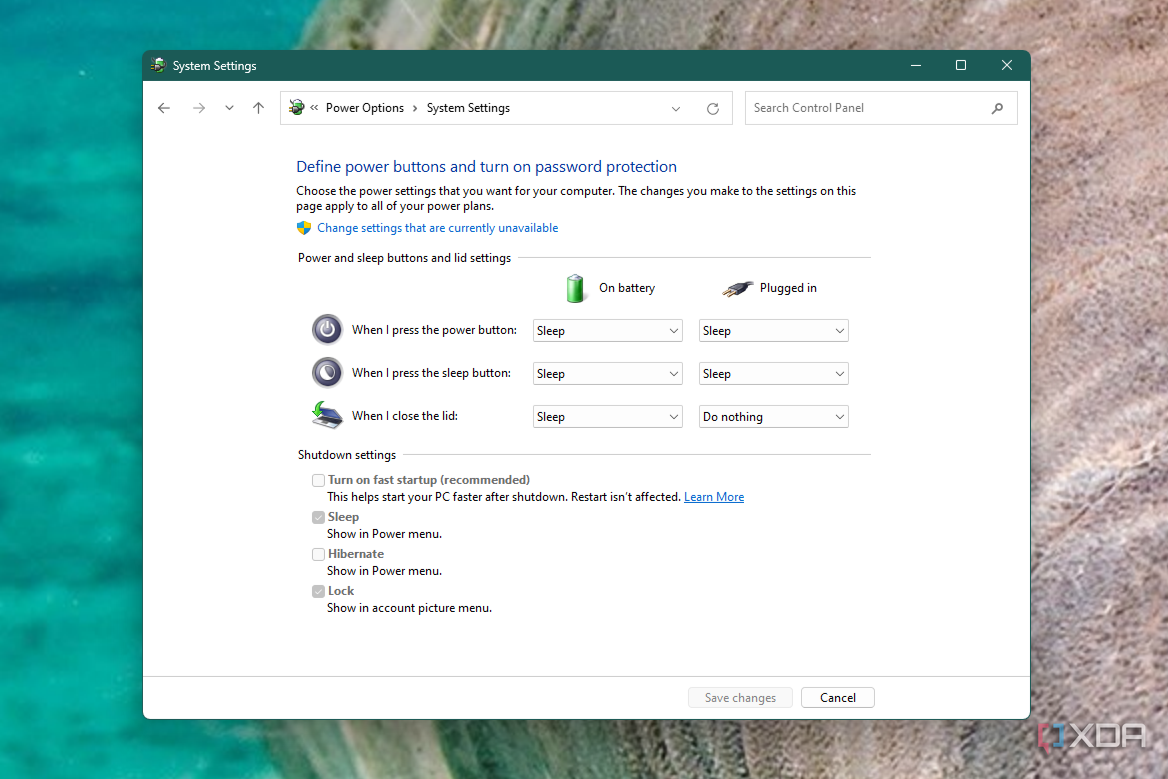
  6. Click on Choose what the power buttons do.
    Windows 11 choosing what the power buttons do
  7. Uncheck the box at the bottom for Turn on fast startup (recommended)

If the box is grayed out, you'll need to click the text at the top that says "Change Settings that are currently unavailable." Then you'll be able to adjust fast startup. It's one of the first things I do once I get a new Windows 11 PC. While it means I have to wait longer, I am happy to know to have a fresh start each time I press the power button.